![archTIS-logo-cmyk-3.png]](https://help.archtis.com/hs-fs/hubfs/archTIS-logo-cmyk-3.png?height=40&name=archTIS-logo-cmyk-3.png)
How to Apply a Watermark to Documents
You can add a watermark to a new policy or existing policy using the policy editor.
- In the policy editor select the Watermarks tab.
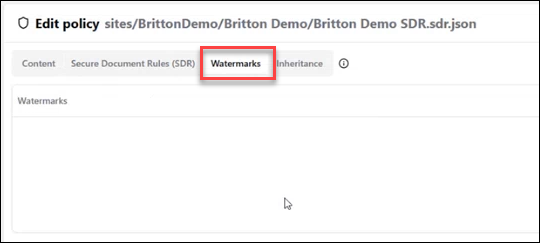
- Click the Add Watermark button in the top right corner.

- The "Add Watermark" dialog opens.
- Enter a description, type, frequency, and style of the watermark using the Text, Opacity and Attributes fields.
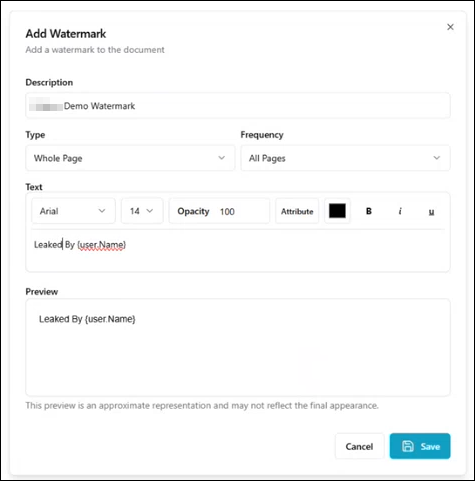
- Enter the text of the watermark and bear in mind you can use variables such as {user.Name}.
- Click Save to close the dialog.
- Save your policy, ensure it is active and close the policy editor.
- Wait for the Secure Document Library to refresh.
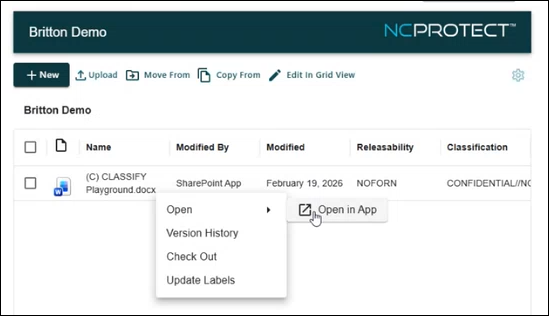
- Open a document to test your watermark.
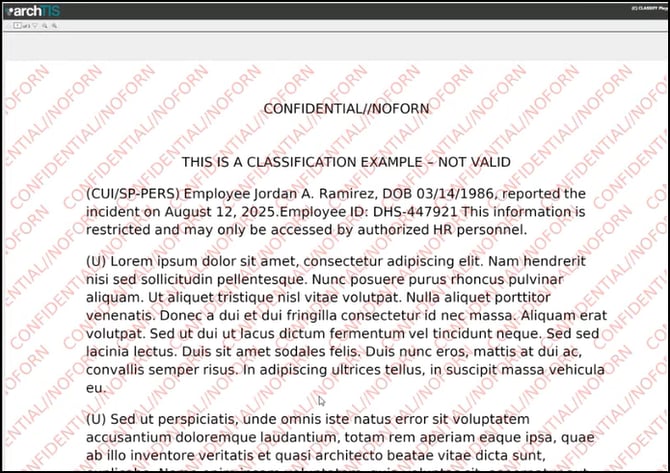
- Return to the policy editor and Watermark dialog to make any changes.
- Save the watermark.
- Save the policy and repeat the process as needed.